
To reverse entries, place the cursor on the correct contract line, click the Actions button, and select Credit. This will create a credit entry in the journal.
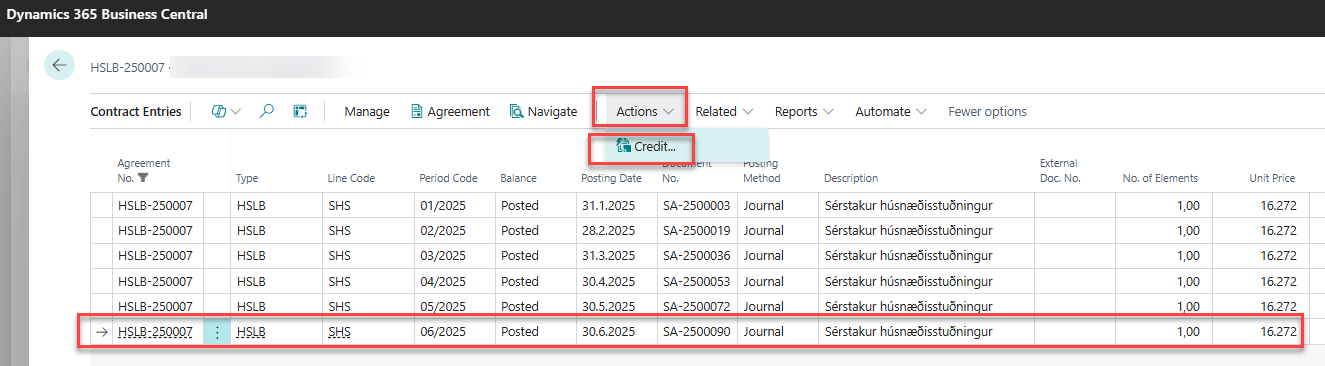
It is also possible to credit contracts that have been posted to sales invoices. This is done in the same way. Note that it is possible to credit, in a single action, an invoice that includes both charges and payments, such as rent and rent subsidies. In such cases, the entire voucher is reversed.
Before posting entries, they must always be created first. The amount to be posted is the amount intended for payment. Posting is simple — press F9 or click Home and select Post.
It is very important to always perform reversals from within the service system if the entries originate there, rather than directly on the customer record. Otherwise, the service system and the financial records will not align, which could lead to issues, for example during the generation of income statements or other audits.
It is also possible to work from the contract overview and create entries for all contracts of a specific type that have been approved. Additionally, all unposted entries can be deleted — for example, if something in the base setup should have been changed but was forgotten, and therefore all entries need to be recalculated.
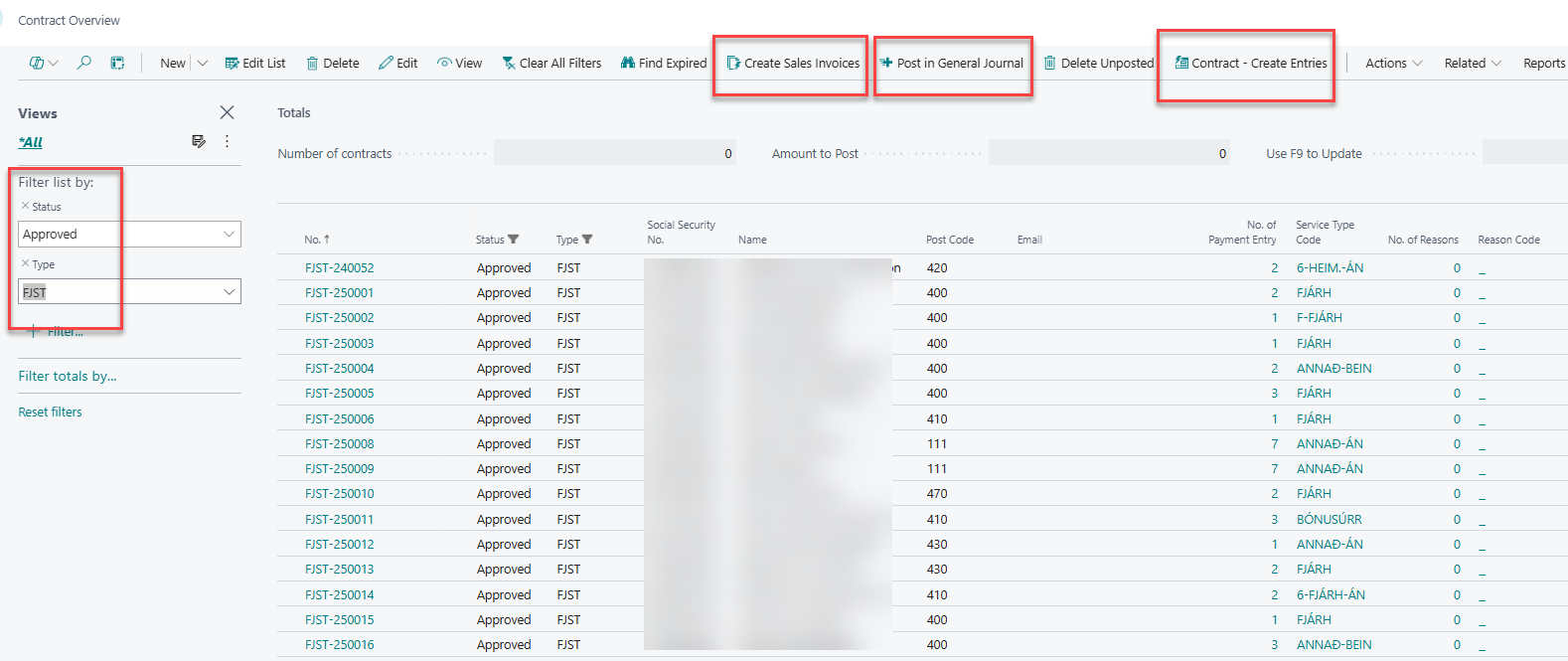
The option “Post in General Journal” posts all contracts that use the journal posting method, provided that entries have been created. The option “Create Sales Invoices” posts all contracts that use the Sales Invoice posting method, again assuming entries have been created.